VS Code Automations Without Unsafe Surprises
A production-minded guide to scheduling recurring VS Code agent tasks without overlapping runs, unsafe permissions, unreliable catch-up behavior, or unreviewed code changes.
 By Amaresh Adak14 min read
free tools · most run in your browser · no signupfree developer tools/most run right in your browser/no signup needed
A production-minded guide to scheduling recurring VS Code agent tasks without overlapping runs, unsafe permissions, unreliable catch-up behavior, or unreviewed code changes.
By Amaresh Adak14 min readFree toolkit
85+ private dev tools
Everything runs in your browser. Zero tracking, no sign-up.
Browse toolsVS Code Automations can schedule an AI agent to inspect a repository every hour, day, or week. That sounds like cron with better vocabulary, but the important difference is authority: the scheduled session may read files, run commands, edit code, and consume paid model usage while nobody is watching.
The safe way to adopt it is to treat every automation as a small production job. Give it a narrow contract, explicit permissions, repeatable output, and a human-owned review boundary before you trust the schedule.
Microsoft introduced Automations in VS Code 1.137, released September 9, 2026. The feature is currently in Preview and rolling out gradually. It stores four things together: a prompt, a target workspace, an agent-session configuration, and a schedule.
That makes it more capable than a reminder and less deterministic than a conventional build job. Each occurrence starts an agent session using the chosen harness, model, permissions, and workspace. The agent interprets the prompt, uses whatever approved tools are available, and records the run in the automation’s History.
The current VS Code Automations documentation supports four schedule modes:
| Schedule | Execution behavior | Good starting use |
|---|---|---|
| Manual | Runs only when you select Run now | Prompt and permission validation |
| Hourly | Runs every hour | Small, read-only health checks |
| Daily | Runs at a selected local time | Change summaries and backlog triage |
| Weekly | Runs on a selected day and local time | Dependency or documentation audits |
Daily and weekly schedules use the machine’s local time zone. There is no arbitrary cron expression in the current interface, and the feature should not be described as a hosted scheduler. Local execution depends on a running VS Code or Agent Host process, depending on the selected session target.
This is the central design constraint: saving a schedule does not create an always-on worker. If the laptop is asleep in a backpack, the agent is not secretly working harder than the laptop.
Automations are off by default in VS Code Stable and on by default in Insiders during the current rollout. Enable the setting through the Settings editor, or add it to user settings:
{
  "chat.automations.enabled": true
}
Then open the Agents window and select Automations in the sidebar. If the entry still does not appear, confirm that VS Code has updated to 1.137 or later and that the feature has reached your rollout cohort.
Create the first automation with these choices:
Templates are useful scaffolding, not policy. A “find bugs” template cannot know which directories contain generated code, which tests are safe to run, or whether opening an issue is allowed. Adapt it until another engineer could predict the possible side effects from the prompt alone.
A scheduled prompt has two specifications: what its author meant and what the agent can reasonably infer. Manual execution reveals the gap while someone is present to answer approvals and stop nonsense before it develops a calendar habit.
During the first run, inspect:
Review the session in History, not only its final paragraph. “Three possible regressions found” is less useful when the session reveals that two came from fixtures and the third came from a branch from last Tuesday.
If the run requests approval, decide whether the operation should be removed, pre-approved narrowly, or kept interactive. Do not fix unattended execution by selecting the broadest permission option and hoping the prompt remains polite.
An automation’s session configuration determines where tools run and where changes land. VS Code currently supports Local, Copilot, Claude, and Codex harnesses plus available cloud targets. Capabilities and permission controls differ, so “the same prompt” is not the same job after switching harnesses.
The official agent-harness guide documents the practical differences:
| Choice | Where work happens | Best fit | Main caution |
|---|---|---|---|
| No workspace | No project files attached | General research or reminders | Cannot validate repository state |
| Current folder | Active working directory | Read-only checks or tasks needing uncommitted work | Changes touch the developer’s live tree |
| New worktree | Separate Git worktree from a base branch | Isolated code changes | Starts from committed state and uses Allow all |
| Cloud target | Provider infrastructure against a GitHub repository | Independent PR-shaped work | Cannot use local editor context or tools |
A worktree isolates code changes from the active folder. It is not a security sandbox. Commands and network access are controlled separately, and worktree sessions currently use Allow all. That trade-off is easy to miss because “isolated” sounds reassuring in a way security vocabulary often does.
Worktrees also start from committed Git state. Uncommitted tracked changes, untracked files, ignored .env files, and installed dependencies are absent by default. A repository needs at least one commit. If the task depends on a local change you have not committed, a new worktree will faithfully ignore the thing you expected it to inspect.
Use the current folder for read-only analysis that needs live workspace state. Use a new worktree for a well-scoped change that can start from a known commit and return a reviewable diff. Then apply OS-level restrictions from the site’s VS Code agent sandboxing guide; worktree separation alone does not constrain shell commands or network access.
A reliable prompt reads like a runbook. It should answer seven questions:
| Prompt element | What to specify |
|---|---|
| Goal | One observable outcome for this run |
| Scope | Repository, branch, paths, and time window |
| Inputs | Commands or sources that establish facts |
| Exclusions | Files, systems, and actions that are off-limits |
| Validation | Checks required before reporting success |
| Output | Exact file, report, issue, or draft expected |
| Stop conditions | When to report a blocker instead of guessing |
Here is a useful read-only example:
Review commits on the current branch from the previous 24 hours.

Scope:
- Read Git history and changed source files in src/ and tests/.
- Ignore generated files, lockfiles, build output, and vendor directories.

Output:
- Return a Markdown summary grouped into features, fixes, and maintenance.
- Include commit hashes and affected paths for every claim.
- Flag changes that may require documentation or a migration note.

Constraints:
- Do not edit files, create branches, open issues, or contact external systems.
- Do not infer intent when the diff is ambiguous; label it unclear.
- If Git history is unavailable, stop and report the exact blocker.
The phrase “do not modify files” is useful, but it is not a permission boundary. Pair prompt constraints with the smallest available tool and permission set. The same principle applies to context: the context-engineering guide explains why deliberate inputs beat a heroic instruction paragraph wrapped around the whole repository.
An idempotent run can execute twice without producing duplicate side effects. That matters because an interrupted schedule may trigger a catch-up run, while retries can repeat work your prompt treated as unique.
For report-producing tasks, write output to a deterministic path based on the covered period. For issue-producing tasks, search for an existing marker before creating anything. For code changes, use a stable branch naming rule and stop when the intended diff already exists.
A small preflight script can give the agent unambiguous repository facts:
#!/usr/bin/env bash
set -euo pipefail

expected_branch="main"
current_branch="$(git branch --show-current)"

if [[ "$current_branch" != "$expected_branch" ]]; then
  echo "blocked: expected $expected_branch, found $current_branch" >&2
  exit 2
fi

if [[ -n "$(git status --porcelain)" ]]; then
  echo "blocked: working tree is not clean" >&2
  exit 3
fi

git log \
  --since="24 hours ago" \
  --no-merges \
  --date=iso-strict \
  --pretty=format:'%H%x09%ad%x09%s'
Commit this as scripts/automation-preflight.sh, make it executable, and tell the automation to stop if it returns a non-zero status. The script does not make the agent safe by itself. It converts two fuzzy assumptions—branch and cleanliness—into testable conditions.
Avoid prompts such as “open an issue for every problem.” The next run may rediscover the same problem with slightly different prose. Prefer “find or update the issue containing marker automation:dependency-audit; create one only when no open issue has that marker.” Stable machine-readable markers beat title similarity.
VS Code’s current behavior needs to be designed into the job:
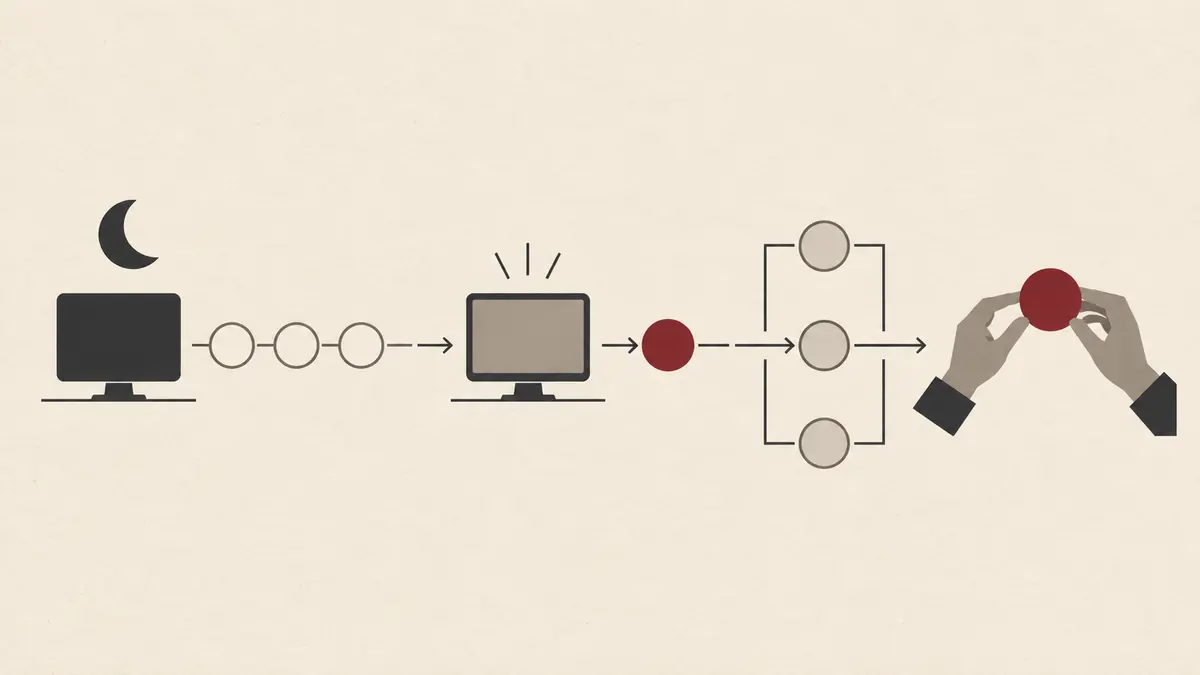
Single-run concurrency prevents one automation from racing itself, but it creates another question: what happens when an hourly job takes 80 minutes? The next occurrence will not run beside it. Design the time window from durable state rather than “the last hour.” Otherwise work at the boundary may be skipped or processed twice.
Use a checkpoint owned by your application or report repository:
{
  "automation": "dependency-audit",
  "lastSuccessfulCutoffUtc": "2026-09-12T12:00:00Z",
  "sourceRevision": "7a45c01",
  "result": "completed"
}
Read the previous successful cutoff, process up to a fixed current cutoff, and write the new checkpoint only after success. Keep timestamps in UTC inside the task even though the UI schedule uses local time. Daylight-saving changes are not a problem in India, but repositories and laptops travel more than requirements documents admit.
Start with a task that produces evidence but no code changes:
Only after the read-only version is stable should you consider a second automation that prepares changes. Keep investigation and mutation separate. The first job can identify a missing changelog entry; the second can create a worktree and draft the patch after a human selects the finding.
This mirrors the safer collaboration pattern in the GitHub Copilot Slack integration guide: shared context can initiate work, but a branch, pull request, and human review remain the delivery boundary.
Do not schedule unattended mutation merely because the agent completed it once under supervision. Keep human approval for:
Content controls and command permissions solve different problems. If Copilot is in use, the site’s content-exclusions guide shows where exclusion policy applies and where it does not. An excluded file is not automatically unreadable to every shell tool or third-party harness.
For mutation that genuinely benefits from recurrence, aim for a draft artifact: a worktree diff, a report, or a draft pull request. The automation may prepare the decision. It should not quietly become the decision-maker because everyone was at lunch.
History provides the session-level audit trail. Review more than success or failure:
| Metric | What it reveals | Warning sign |
|---|---|---|
| Scheduled versus started runs | Machine and agent availability | Repeated gaps or catch-up dependence |
| Completion rate | Prompt and environment reliability | Approvals or missing tools block unattended work |
| Runtime | Scope drift and tool inefficiency | Duration approaches the schedule interval |
| Findings accepted | Signal quality | Large reports with little reviewer action |
| Repeated findings | Weak idempotency | Same issue appears every run |
| Files or systems touched | Scope compliance | Access expands beyond the contract |
| Model usage | Recurring cost | Cost rises without more accepted output |
Each run uses the selected agent and model, so frequency multiplies usage. An hourly automation runs roughly 24 times as often as a daily one while you gain exactly zero extra value if the underlying repository changes twice a day.
Review schedules after model, harness, extension, workspace, or permission changes. Preview features can evolve, and changing session configuration can alter tools, approval behavior, execution location, and billing. Treat the stored configuration as a versioned operational dependency even though the UI does not call it one.
Disabling an automation prevents future runs but does not stop an active session. Stop the current run separately in History. Deleting an automation permanently removes it and its run history, so export evidence needed for audits before cleanup.
Do not assume so. Agent Host-backed schedules need the Agent Host process running; other local schedules need a running VS Code window. A cloud target can execute remotely, but it has different tools and cannot access local editor state.
Not in the current Preview interface. The documented choices are Manual, Hourly, Daily, and Weekly. Daily and weekly schedules use local time.
No guarantee is documented. A missed schedule can trigger a catch-up run after interruption, but you should not rely on every missed occurrence being replayed. Use durable checkpoints when every item must be processed.
No. One automation runs one session at a time, and another scheduled occurrence does not start a parallel session for that automation. Long jobs therefore need explicit time windows and checkpoints.
No. It separates code changes from the active workspace, but it is not a command or network security boundary. Worktree sessions currently use Allow all. Apply sandboxing, narrow tools, repository protections, and human review separately.
VS Code Automations are most useful for repetitive work with a clear input, bounded scope, and reviewable output. Begin manually, make the prompt a runbook, choose workspace and permissions deliberately, design for sleeping machines and catch-up runs, and make side effects idempotent.
The schedule is the easy part. The real engineering is ensuring that the tenth unattended run is as predictable as the first supervised one—and considerably less adventurous than an agent with a shell, a vague prompt, and an empty afternoon.
Comments
Sign in to join the discussion.
No comments yet. Be the first to share your thoughts.