VS Code Agent Sandboxing Without Unsafe Escapes
A practical security guide to enabling VS Code agent sandboxing, limiting filesystem and network access, controlling elevation, and testing the resulting policy.
 By Amaresh Adak11 min read
free tools · most run in your browser · no signupfree developer tools/most run right in your browser/no signup needed
A practical security guide to enabling VS Code agent sandboxing, limiting filesystem and network access, controlling elevation, and testing the resulting policy.
By Amaresh Adak11 min readFree toolkit
85+ private dev tools
Everything runs in your browser. Zero tracking, no sign-up.
Browse toolsVS Code agent sandboxing lets coding agents run terminal commands inside operating-system-enforced file and network boundaries. That is safer than relying on repeated approval prompts, but it is not a complete containment system: the workspace remains writable, non-terminal tools have separate permissions, and an elevated command leaves the sandbox. The useful question is therefore not simply whether sandboxing is enabled, but whether its policy matches the risks in your repository.
VS Code agent sandboxing applies OS-level restrictions to terminal commands executed through the agent's runInTerminal tool. With the sandbox enabled, commands can read workspace folders and the sandbox runtime's temporary directory, but reads from the user's home directory are denied by default. Writes are limited to the current working directory and its descendants.
Network access is also denied by default unless a domain is allowed. Because these commands run inside enforced boundaries, VS Code can auto-approve them without showing a confirmation for every invocation. Microsoft's current approval and sandbox configuration guide marks the feature as preview, so settings and UI details can still change between releases.
That model is different from command-pattern approval. A regex rule tries to decide whether a command looks safe before execution. A sandbox limits what the resulting process can access during execution. This distinction matters because shell aliases, nested commands, quoting tricks, and subprocesses can make pre-execution parsing incomplete.
| Control | Enforcement point | Main purpose | Important limitation |
|---|---|---|---|
| Workspace Trust | VS Code workspace | Disable agents and executable features in untrusted projects | Trusting a workspace enables more capabilities |
| Command approval | Before terminal execution | Ask before selected commands run | Parsing is best effort |
| Agent sandbox | Operating system | Restrict terminal filesystem and network access | Covers terminal commands, not every tool |
| File-edit approval | VS Code edit tool | Protect sensitive file patterns | Does not govern shell-based writes |
| MCP approval | Tool invocation | Control external tool use | A trusted server may still expose powerful actions |
| Diff review | Before integration | Catch unsafe or incorrect changes | Requires careful human review |
Sandboxing should sit inside this layered model. It does not replace the explicit permission contract discussed in the AI coding agent permission guide, and it does not make unreviewed output safe to merge.
The current preview supports macOS and Linux. Windows developers can use it when VS Code is connected to a WSL2 environment; native Windows-host terminal sandboxing is not listed as supported.
| Development environment | Current support | Policy setting |
|---|---|---|
| macOS workspace | Supported | chat.agent.sandbox.fileSystem.mac |
| Linux workspace | Supported | chat.agent.sandbox.fileSystem.linux |
| Windows with WSL2 | Supported inside WSL2 | Linux filesystem policy |
| Native Windows workspace | Not currently listed | Use WSL2, a dev container, VM, or cloud sandbox |
On Windows, open the repository inside WSL2 rather than editing a Windows path from a normal desktop session. Install WSL if needed, enter the distribution, move or clone the project into its Linux filesystem, and start VS Code from there:
wsl --install
After Windows finishes the required setup, run these commands inside the WSL distribution:
mkdir -p ~/src
cd ~/src
git clone https://github.com/example/project.git
cd project
code .
Do not interpret WSL2 support as a guarantee that Windows files are unreachable. Mounted drives such as /mnt/c can expose host data. Keep the project in the Linux filesystem, deny unnecessary mounted paths, and avoid placing production credentials inside the WSL environment.
Start with sandboxing enabled, unrestricted network access disabled, and automatic elevation disabled. Add only the domains and external read paths the build actually requires.
Open the workspace's .vscode/settings.json only after deciding that the repository is trusted. A conservative example is:
{
  "chat.agent.sandbox.enabled": "on",
  "chat.agent.sandbox.allowUnsandboxedCommands": false,
  "chat.agent.sandbox.retryWithAllowNetworkRequests": false,

  "chat.agent.networkFilter": true,
  "chat.agent.allowedNetworkDomains": [
    "api.github.com",
    "registry.npmjs.org",
    "api.nuget.org"
  ],
  "chat.agent.deniedNetworkDomains": [
    "*.internal.example.com"
  ],

  "chat.tools.edits.autoApprove": {
    "**/.env": false,
    "**/.env.*": false,
    "**/secrets/**": false
  }
}
The domain list is an example, not a universal allowlist. A frontend project may need a package registry; a .NET build may need NuGet; neither automatically needs access to a cloud console or production API. Denied domains take precedence over allowed domains.
VS Code's preview setting surface has changed during rollout. If the installed build exposes a permission-picker checkbox or a slightly different network option, use the UI backed by that build and check its Settings description. Keep the security outcome constant: filesystem isolation on, network denied unless required, and no silent fallback outside the sandbox.
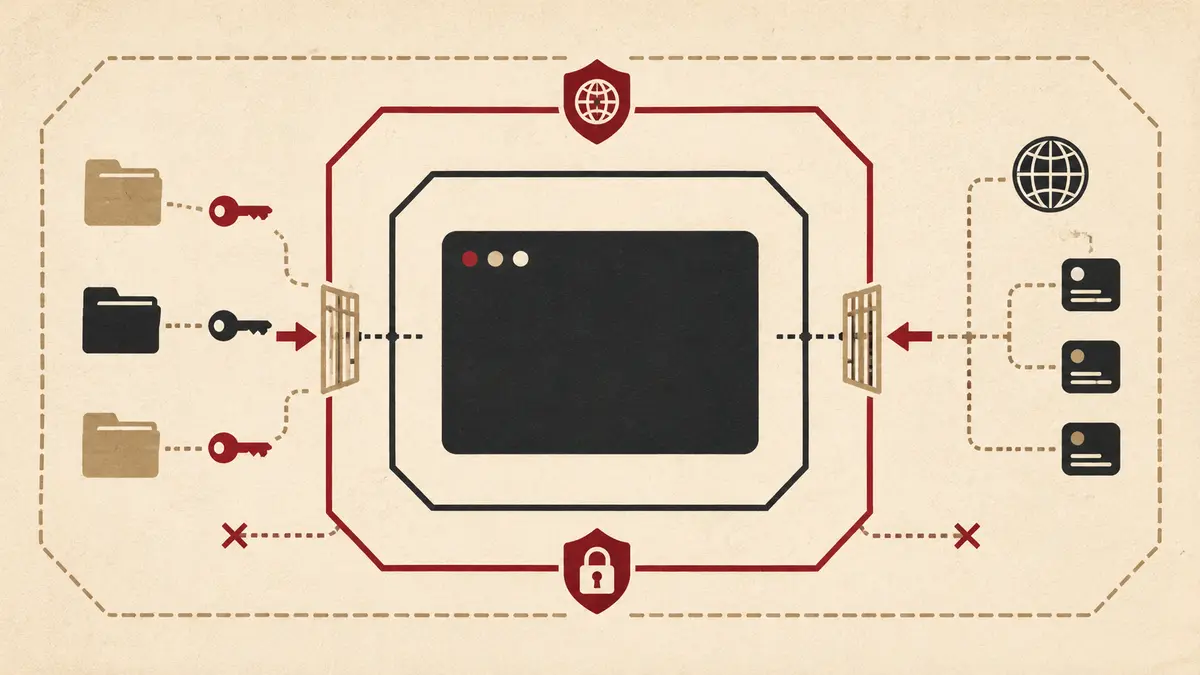
Default workspace access is enough for many repositories. Add an external path only when a documented build step fails without it, and grant read access before considering write access.
Linux and WSL2 use chat.agent.sandbox.fileSystem.linux; macOS uses the equivalent .mac setting. Rules are literal paths rather than glob patterns. Deny rules take priority over allow rules.
{
  "chat.agent.sandbox.fileSystem.linux": {
    "allowWrite": ["."],
    "allowRead": [
      "/home/dev/.config/NuGet/NuGet.Config"
    ],
    "denyWrite": [
      "./.git/hooks/",
      "./infra/production/"
    ],
    "denyRead": [
      "/home/dev/.ssh/",
      "/home/dev/.aws/",
      "/home/dev/.azure/"
    ]
  }
}
Replace /home/dev with the actual WSL or Linux home path. Avoid allowing the entire home directory just to satisfy one tool. A package manager may need a configuration file, but that does not imply that the agent should read SSH keys, cloud profiles, browser data, or shell history.
The workspace itself is not a secret store. An agent can read files needed to understand and change the project, so committed credentials and local .env files inside the workspace remain exposed. Move real secrets to a credential broker or scoped environment injection, and use placeholders for development.
Treat an allowed domain as an outbound capability, not merely permission to download documentation. If credentials are already present, access to a cloud or Git host can also permit writes, deployments, issue edits, or repository pushes.
Use this sequence:
Wildcards are supported, but *.example.com is materially broader than packages.example.com. Do not allow a whole vendor domain when the workflow needs one registry endpoint.
This boundary also complements MCP security. A sandboxed shell may be unable to reach an internal service, while a separately trusted MCP server can still call it. Review its authorization and tool scope using the remote MCP authentication guide.
When a sandboxed command succeeds, VS Code runs it without a confirmation prompt. If restrictions block it, the default experience can offer a retry with broader network access or ask to run the command outside the sandbox. Those escape paths are the most important part of the policy.
For a strict repository, set both retry and unsandboxed-command options to false, as in the baseline above. A blocked command then stays blocked until a person deliberately changes policy. For exploratory work, keep elevation available but require the developer to inspect the exact command and reason before approval.
Never treat “run outside sandbox” as a routine fix for package installation. First determine which file path or hostname was blocked. Grant the narrow dependency rather than removing the boundary.
Global auto-approval and /yolo-style modes remove important prompts across workspaces. If a team needs high autonomy, isolate the work in a disposable container, VM, or remote sandbox and use credentials that cannot reach production. The package boundary principles in the Agent Plugins 1.0 guide still apply to skills, hooks, and bundled MCP servers.
The sandbox is deliberately scoped. Account for these gaps:
Microsoft's VS Code trust and safety documentation recommends layered controls: Workspace Trust, scoped approvals, sensitive-file protection, MCP review, sandboxing, and diff review. That is the right operational model. A sandbox reduces impact; it does not establish intent.
Test controls with harmless probes before assigning a large autonomous task. Run them through the agent terminal, not a separate unrestricted terminal, and compare the behavior with the intended policy.
set -u

# Expected to succeed: inspect and write inside the workspace.
pwd
printf 'sandbox-check
' > .sandbox-check
test -f .sandbox-check

# Expected to fail unless explicitly allowed: read a home secret.
test -r "$HOME/.ssh/id_ed25519" && printf 'unexpected read access
'

# Expected to follow the configured domain policy.
curl --fail --silent --show-error https://api.github.com/meta >/dev/null
curl --fail --silent --show-error https://example.com >/dev/null
Remove .sandbox-check after inspection. Do not test with destructive commands, real credential uploads, production endpoints, or files that matter. The objective is to prove denial and elevation behavior without creating damage.
Add repository-specific checks: verify that a normal npm ci, dotnet restore, build, and unit-test run succeed; confirm production infrastructure folders remain protected; and check that blocked network requests do not silently retry outside the sandbox.
Record the VS Code version with the test result because the feature is in preview. Re-run the checks after an editor update, policy change, new MCP server, or CI-image change.
Use a staged rollout rather than enabling broad auto-approval for everyone:
Keep user or workspace-wide exceptions rare. Session-scoped approval is easier to revoke, and repository settings should not silently weaken controls for unrelated projects.
No. Microsoft's current documentation lists chat.agent.sandbox.enabled as off by default. Enable it through the permission picker or settings, then verify the effective file and network policy with safe probes.
The current preview lists macOS and Linux support, including VS Code sessions running inside WSL2. Native Windows-host terminal sandboxing is not listed; use WSL2, a development container, a VM, or a remote sandbox for an enforced boundary.
Yes, commands that run inside the sandbox are auto-approved because OS-level file and network restrictions apply. A blocked command may request elevation or a broader network retry unless those fallback settings are disabled.
Outbound access is blocked by default when full sandboxing is on. Allow required domains with chat.agent.allowedNetworkDomains, keep the network filter enabled, and remember that denied rules override allowed rules.
Not by itself. Terminal sandboxing governs runInTerminal commands. MCP calls, built-in edits, browser tools, and extension tools use their own trust, approval, and policy controls.
VS Code agent sandboxing is most useful when it turns terminal autonomy into a bounded capability instead of a chain of tired approval clicks. Enable it with network denial, narrow filesystem exceptions, and no automatic escape; then test the policy with harmless probes. Keep Workspace Trust, MCP review, sensitive-file protection, and diff review in place, because the terminal sandbox is one security layer rather than the whole system.
Comments
Sign in to join the discussion.
No comments yet. Be the first to share your thoughts.